Broadband Needs for Smart Homes with 50+ IoT Devices (Matter/Zigbee)
Managing a smart home with over 50 IoT devices requires more than just a faster broadband plan. Most smart devices consume very little data, so the real challenge is managing Wi-Fi radio airtime rather than bandwidth capacity. When too many devices share the same 2.4GHz frequency, they compete for airtime, which often leads to network instability. To optimize your home network, you should prioritize separating high-bandwidth traffic like streaming onto 5GHz bands while offloading IoT devices to Zigbee, Thread, or dedicated access points. Using a wired Mesh system can also help distribute the workload across different radios, preventing bottlenecks. Ultimately, a reliable smart home relies on efficient radio management rather than simply increasing your fibre speed.
If your smart home has 50 or more connected devices, upgrading to 1Gbps is not automatically the solution. Most sensors, switches and smart plugs use very little Internet bandwidth; the bigger problem is often having too many Wi-Fi devices competing for the same 2.4GHz radio.
50 IoT Devices Can Use Less Bandwidth Than One 4K TV
A smart switch does not continuously consume the same bandwidth as a laptop, CCTV camera or 4K TV.
For many IoT devices, network traffic consists mainly of small control messages: a motion sensor reporting an event, a smart plug receiving an on/off command, or a temperature sensor sending a reading.
That changes how you should assess broadband requirements.
| Device | Main network requirement |
| Smart switch | Low bandwidth, reliable connection |
| Door / motion sensor | Low bandwidth, coverage |
| Smart plug | Low bandwidth, stable 2.4GHz connection |
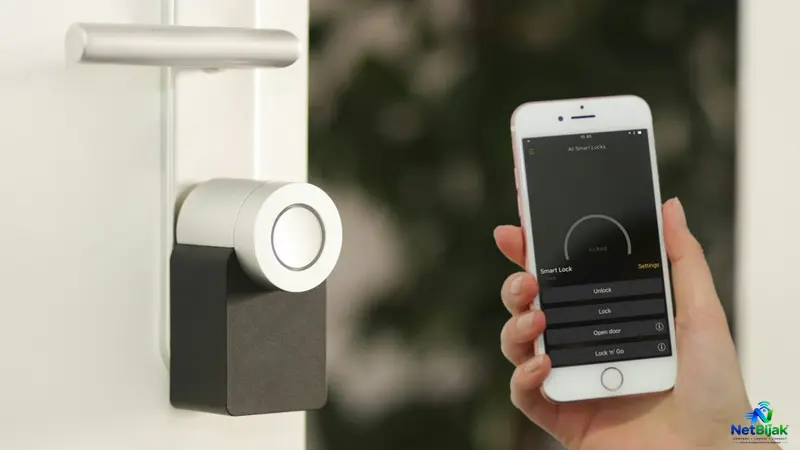
| Smart lock | Low bandwidth, reliability |
| Smart speaker | Wi-Fi stability |
| IP camera | Much higher traffic, especially upload |
| Smart TV | High downstream bandwidth |
| PC / laptop | High and variable bandwidth |
A home with 60 switches and sensors can therefore place less demand on the Fibre connection than a home with six people streaming, gaming and backing up files simultaneously.
The first question should not be “How many devices do I have?”
It should be:
“How many of them actually use Wi-Fi, and how many are generating significant traffic?”
The 20-Device Router Limit Is a Myth
There is no universal technical limit where a home router suddenly becomes unusable at 20 connected devices.
A router handling 20 mostly idle smart plugs is dealing with a very different workload from one handling 20 phones, laptops, cameras and streaming devices.
The more important issue for a large Wi-Fi IoT installation is airtime.
Wi-Fi clients share radio airtime. A weak or slow client can consume more airtime to transmit the same amount of data than a client operating at a higher data rate. Cisco's wireless deployment documentation describes this relationship between client data rates and channel utilisation. Cisco wireless deployment guide
This matters particularly on 2.4GHz.
Cisco notes that the 2.4GHz band has only three non-overlapping channels and is also used by other technologies, making interference and channel reuse important considerations in dense deployments. Cisco 2.4GHz design guidance
So a smart home can become unreliable without coming anywhere close to using up its Fibre bandwidth.
The Real Problem: Too Many Wi-Fi IoT Devices on One Radio
Suppose a house has:
- 25 smart switches
- 10 smart plugs
- 8 sensors
- 4 smart speakers
- 3 cameras
- 5 phones and computers
The total is already more than 50 connected devices.
But the network load is not evenly distributed.
The switches and sensors may generate tiny amounts of traffic. The cameras, computers and entertainment devices are much more demanding.
If most of those IoT devices are Wi-Fi 2.4GHz clients connected to one AP, the issue becomes radio contention and coverage, not whether the Fibre plan is 300Mbps or 1Gbps.
This is why simply buying a faster broadband package can leave the original problem untouched.
Use 5GHz for High-Bandwidth Devices
A practical smart-home layout should avoid putting everything on 2.4GHz.
Use:
- 5GHz / 6GHz: phones, laptops, TVs and other high-throughput devices
- 2.4GHz: older smart-home devices and IoT equipment that requires it
- Ethernet: desktops, TVs, NAS, NVRs and other fixed high-bandwidth devices
- Thread: compatible low-power Matter devices
- Zigbee: compatible sensors, switches and automation devices through a Zigbee coordinator or hub
This separates the devices according to what they actually need instead of forcing the entire house onto one Wi-Fi radio.
A Separate 2.4GHz IoT SSID Helps — But It Does Not Create More Airtime
Creating an IoT SSID is useful for managing smart-home devices.
You can place devices such as smart plugs, switches and older 2.4GHz-only products on a dedicated network rather than mixing them with laptops, phones and other personal devices.
Cisco specifically recommends considering a separate SSID when 2.4GHz Wi-Fi needs to be retained for IoT or legacy devices in dense environments. Cisco wireless design guidance
But there is an important limitation:
A separate SSID is logical separation, not physical RF separation.
If the main SSID and IoT SSID are both running on the same 2.4GHz radio, they still share the same physical airtime.
So:
Separate SSID = better organisation and control.
Additional AP/radio = additional wireless capacity.
That distinction is important when troubleshooting a 50+ device home.
Mesh Is Useful When One AP Is Doing Too Much
For a larger house, adding another access point or Mesh node can distribute clients across different radios and locations.
The ideal arrangement is Ethernet backhaul where cabling is available.
With Ethernet backhaul, the Mesh node connects to the main router through a physical Ethernet cable instead of using Wi-Fi as its inter-node connection. TP-Link's current EasyMesh documentation describes wired backhaul as providing a faster and more stable connection between Mesh nodes. TP-Link EasyMesh Ethernet Backhaul guide
This matters because a wireless Mesh node still has to use wireless airtime for its backhaul.
A wired design can therefore look like:
| Network layer | Role |
| Fibre | Internet connection |
| Main router | Routing and network management |
| Ethernet | Mesh/AP backhaul |
| AP 1 | Main living area |
| AP 2 | Upstairs / remote area |
| 2.4GHz IoT SSID | Wi-Fi smart-home devices |
| 5GHz / 6GHz | Phones, laptops and high-speed devices |
| Thread / Zigbee | Low-power IoT mesh |
The objective is not simply to add more Wi-Fi coverage.
It is to stop one radio from becoming the bottleneck for the whole house.
Matter Does Not Mean Every Device Uses Wi-Fi
This is where many smart-home discussions become technically confusing.
Matter is an application-layer smart-home standard. It is not a Wi-Fi replacement.
The Connectivity Standards Alliance states that Matter uses existing networking technologies including Wi-Fi, Thread and Ethernet, while Bluetooth Low Energy has traditionally been used for device commissioning. Connectivity Standards Alliance — Matter FAQ
So two Matter-certified devices can have very different network requirements.
Matter over Wi-Fi
A Matter device using Wi-Fi becomes a normal Wi-Fi client.
If you have dozens of Wi-Fi Matter switches and sensors, they still contribute to the load on your Wi-Fi infrastructure.
Matter over Thread
Thread is a separate low-power mesh network based on IEEE 802.15.4.
Thread Group describes Thread as an IP-based, low-power mesh protocol designed specifically for IoT and smart-home devices. A Thread Border Router connects the Thread network to the home's IP network. Thread Group — Thread in Homes
That means compatible Matter-over-Thread sensors and switches do not need to become individual Wi-Fi clients.
This is one reason a large smart home does not necessarily need an increasingly large Wi-Fi client list.
Where Zigbee Fits
Zigbee is another low-power wireless technology commonly used for smart-home sensors, switches and automation devices.
A Zigbee installation normally uses a coordinator or hub, with compatible devices forming their own Zigbee network rather than connecting each device directly to the home's Wi-Fi router.
For a large smart home, this can keep dozens of low-bandwidth automation devices away from the main Wi-Fi client pool.
The result is a more distributed architecture:
Fibre → Router → Wi-Fi devices
alongside
Router / Border Router → Thread devices
and
Router / Hub → Zigbee devices
The Internet connection is still shared where cloud access is required, but the local wireless network is no longer dependent on putting every IoT device directly onto Wi-Fi.
So How Much Broadband Does a 50+ IoT Home Need?
There is no useful rule saying “50 devices = 1Gbps”.
A better approach is to calculate the normal household traffic first, then make sure the Wi-Fi architecture can handle the number and location of clients.
| Home scenario | What matters most |
| 50+ sensors and switches | Wi-Fi / Thread / Zigbee architecture |
| 50+ IoT + normal family usage | Fibre speed + Wi-Fi capacity |
| IoT + several 4K streams | Fibre bandwidth + 5GHz/6GHz capacity |
| IoT + multiple IP cameras | Upload bandwidth + Wi-Fi/Ethernet |
| Large two-storey smart home | AP placement + Mesh/backhaul |
| 50+ devices mostly using Thread/Zigbee | Wi-Fi client count may remain relatively low |
For many households, 300Mbps can already provide plenty of Internet bandwidth for the IoT portion of the network. Moving to 1Gbps becomes more relevant when the household's other traffic justifies it.
The exact broadband tier should therefore be based on the family's actual usage, not the number printed beside “connected devices” in the router interface.
A Better Upgrade Order
If a 50+ device smart home is already experiencing delayed automation, random disconnections or unstable IoT devices, check the network in this order:
- Identify the protocol — Wi-Fi, Thread or Zigbee.
- Count actual Wi-Fi clients — not all smart-home devices.
- Check the 2.4GHz environment — channel utilisation and interference matter.
- Separate IoT from high-bandwidth clients — use 2.4GHz IoT SSID where appropriate.
- Add another AP/Mesh node if one location is overloaded or poorly covered.
- Use Ethernet backhaul where possible.
- Only then decide whether the Fibre connection itself is too slow.
This prevents an expensive broadband upgrade from being used to solve a Wi-Fi architecture problem.
NetBijak’s Take
For a 50+ IoT home, design the wireless network before upgrading the Fibre plan.
Keep high-bandwidth devices on 5GHz/6GHz or Ethernet, put Wi-Fi-only IoT on a controlled 2.4GHz network, and use Thread or Zigbee for compatible low-power devices. If one AP is carrying too many clients, adding AP capacity and using Ethernet backhaul can address the actual bottleneck more directly than moving from 300Mbps to 1Gbps.
Frequently Asked Questions
No. Device count alone does not determine broadband speed. Many sensors and switches generate very little Internet traffic.
Yes. Many IoT devices use 2.4GHz because of its coverage characteristics and device ecosystem. The problem is not that 2.4GHz is automatically unsuitable; it is that a large number of clients can increase airtime contention and interference.
It is useful for separating and managing IoT devices, particularly older 2.4GHz equipment. However, it does not create additional radio capacity if it runs on the same physical 2.4GHz radio.
Not necessarily. A well-designed single AP may handle a particular installation. Mesh or additional APs become more useful when the house has multiple floors, difficult coverage areas or too many clients concentrated around one AP.
Not always. Matter can operate over Wi-Fi, Thread and Ethernet. Therefore, a Matter device may not be a Wi-Fi client at all.
They serve different purposes. Thread is specifically designed as a low-power mesh for IoT, while Wi-Fi is designed for much higher-bandwidth applications. Thread is therefore well suited to compatible sensors, locks and switches, while Wi-Fi remains appropriate for devices that need higher throughput.
Related Articles
 Article
Two terrace houses next to each other, one occupied by parents and the other by relatives. Instead o...
 Article
A cheap smart plug or IP camera does not need access to your laptop, NAS or home printer. Putting le...
 Article
TP-Link has introduced Wi-Fi 8 in Malaysia, but the important part is not the headline speed.At its ...
 News
NewsMore than 5,000 people gathering inside one venue can expose a networking problem that a normal home...
 Article
If you already have 1Gbps or 2Gbps Fibre, WiFi 7 can help remove the wireless bottleneck — but upgra...
 Article
Why Does TikTok Make Netflix Freeze?If your Netflix stream freezes whenever the kids start scrolling...