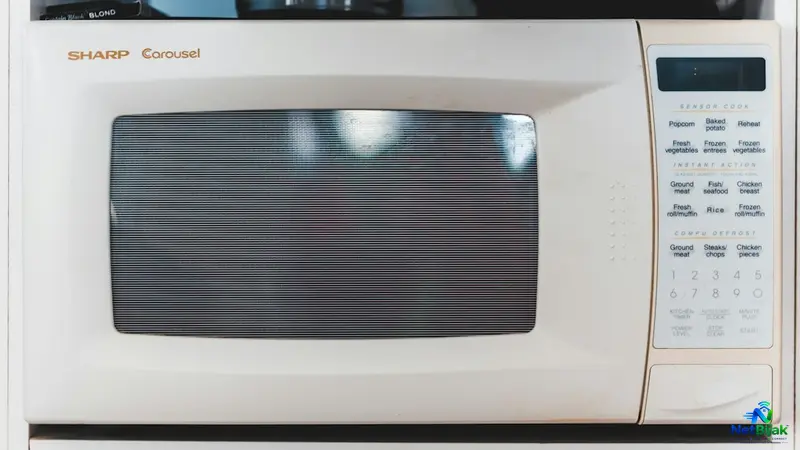
Interference from Household Appliances: Microwaves, Bluetooth and Cordless Phones
If your Wi-Fi drops every time you use the microwave, your fibre connection likely isn't the problem. Many household devices, including microwaves and older cordless phones, operate on the same 2.4GHz frequency as your router, causing signal interference. To improve stability, try physically moving your router away from kitchen appliances that generate radio noise. You should also connect modern devices like laptops and TVs to the 5GHz band whenever possible to avoid this congestion. Following these steps helps you rule out wireless environment issues before assuming there is a fault with your broadband line. By optimising your home layout, you can enjoy a more reliable internet experience without needing constant troubleshooting.
A microwave starts in the kitchen and the living-room Wi-Fi suddenly becomes unstable. In many cases, the fibre line is not the problem. The issue is 2.4GHz radio interference between the microwave and your wireless devices.
Why 2.4GHz Gets Crowded
Wi-Fi is not the only technology using 2.4GHz. Bluetooth also operates in the 2.4GHz ISM band, and Cisco lists microwave ovens and some cordless phones among other non-Wi-Fi devices that can interfere with 2.4GHz WLANs.
The problem becomes worse in homes with many 2.4GHz devices:
- Smart plugs and sensors
- Older IoT devices
- Bluetooth peripherals
- Neighbouring Wi-Fi networks
- Wireless cameras
- Older 2.4GHz cordless phones
A 2.4GHz network can therefore become unreliable without any fault on the broadband connection itself.
Why a Microwave Can Affect Your Wi-Fi
Domestic microwave ovens operate around 2.45GHz, which is close to the Wi-Fi 2.4GHz band. The oven is designed to contain microwave energy inside its metal enclosure, but some RF leakage is still permitted under safety standards. The US FDA, for example, limits microwave leakage from a household oven to 5mW/cm² measured approximately 2 inches from the surface.
That small amount of leakage can still matter to a Wi-Fi receiver when the desired Wi-Fi signal is weak.
Consider this layout:
Kitchen microwave → open dining area → living-room phone
When the microwave starts, the receiver may see more RF interference. Packets are corrupted, retransmissions increase and throughput can fall sharply.
The broadband connection may remain normal. It is the wireless link inside the house that is struggling.
The Physical Fix: Change the Layout
Changing the Wi-Fi channel is not always the best first step.
The most useful physical solution is to increase the distance between the microwave and the Wi-Fi equipment.
Keep the router away from the microwave
Do not place the main router or mesh node directly beside the microwave.
A better layout is:
Kitchen
Microwave
↓
Wall / physical separation
↓
Living room
Wi-Fi access point
Walls and building materials can attenuate RF signals. Cisco's RF documentation specifically identifies concrete, walls and metal as sources of RF attenuation.
The objective is not to “block” the microwave with homemade shielding. It is simply to avoid putting Wi-Fi equipment in the strongest interference area.
Move Compatible Devices to 5GHz
For phones, laptops, TVs and other dual-band devices, use 5GHz instead of 2.4GHz where coverage allows.
Cisco notes that 2.4GHz is more exposed to interference from microwaves, Bluetooth and cordless phones, while the 5GHz band is less affected by these sources.
This is particularly useful for a living room located close to the kitchen.
Keep 2.4GHz for devices that actually need it, such as many IoT products that prioritise range over speed.
What About Bluetooth?
Bluetooth shares the same 2.4GHz ISM band as Wi-Fi, so collisions are possible. Bluetooth uses frequency-hopping and other interference-mitigation techniques to reduce the impact.
In a normal home, one Bluetooth mouse or speaker is unlikely to explain a dramatic Wi-Fi outage by itself. The bigger issue is overall 2.4GHz congestion, especially when many wireless devices are operating close together.
What About Cordless Phones?
Do not assume every cordless phone interferes with 2.4GHz Wi-Fi.
Older cordless phones can use 2.4GHz and are listed by Cisco as possible interference sources.
Other cordless-phone technologies use different frequencies, so the actual model and technology matter.
Should You Change the 2.4GHz Channel?
It can help, but it is not a guaranteed fix for microwave interference.
Apple currently recommends 20MHz channel width on 2.4GHz because narrower channels can reduce reliability problems in congested environments and around other 2.4GHz devices. Apple also recommends automatic channel selection where supported.
For a microwave-related problem, use this order:
1. Move the router/access point away from the microwave.
2. Move phones, laptops and TVs to 5GHz or 6GHz.
3. Keep 2.4GHz at 20MHz.
4. Test another 2.4GHz channel only if the problem continues.
How to Confirm It Is Wi-Fi Interference
There is a simple test.
Connect the same device to 2.4GHz, then start the microwave.
If the connection becomes unstable, repeat the test on 5GHz.
If 2.4GHz consistently fails while 5GHz remains stable, the problem is likely related to the local wireless environment rather than the fibre connection.
An Ethernet test is even more useful. If Ethernet remains stable while 2.4GHz Wi-Fi fails, there is little reason to start troubleshooting the ISP's fibre line.
NetBijak's Take
A microwave that affects Wi-Fi does not automatically mean your broadband is faulty. In a kitchen-adjacent living room, physical separation and moving normal devices to 5GHz are usually more useful than repeatedly changing Wi-Fi channels.
Frequently Asked Questions
Yes. Microwave ovens operate around 2.45GHz, overlapping the general 2.4GHz spectrum used by Wi-Fi.
Microwave ovens primarily affect the 2.4GHz environment. 5GHz operates in a different frequency range, so moving a compatible device to 5GHz can avoid this particular source of interference.
No. Do not modify the microwave's enclosure or build homemade shielding around it. The oven's enclosure, door and safety systems are designed as one system, and microwave ovens are subject to leakage and interlock safety requirements.
It can contribute to 2.4GHz congestion, but Bluetooth is designed to reduce interference through frequency-hopping techniques. A microwave or heavy congestion from multiple 2.4GHz devices can be a more obvious cause.
Apple currently recommends 20MHz channel width for 2.4GHz and automatic channel selection where supported.
Related Articles
 Article
Your broadband works normally for an hour, then suddenly disconnects for a few seconds or minutes be...
 Article
If your ping becomes unstable after the router has been running for a long time, a reboot is worth t...
 Article
When overseas websites suddenly become slow but Malaysian websites and your local speed test still l...
 Article
If your Unifi Internet is slow or not working, check for an outage first, check your equipment and i...
 Article
Why Is My Internet Slow?A slow Internet connection does not necessarily mean that your broadband pla...
 Article
Including fibre broadband in the rent can make a rental property easier to market. The problem start...