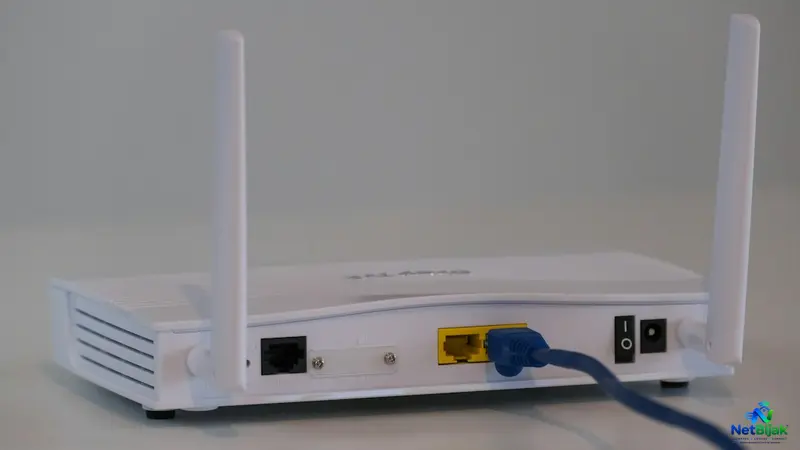
How to Clear Router Cache and Refresh ARP Tables for Better Latency
If your internet ping feels unstable, rebooting your router is a common first step, but it is not a universal fix for all latency issues. To determine if a restart will actually help, you should perform a simple ping test to both your local router and an external destination. This comparison helps you identify whether the bottleneck is within your home network or originating from your ISP's path. While a reboot clears temporary memory and resets active network states, it does not magically boost your broadband speed or clear ISP-side routing issues. It is important to distinguish between local ARP table errors and external latency problems to avoid unnecessary troubleshooting. Ultimately, if your router requires daily reboots, you may be dealing with deeper hardware or firmware issues rather than a simple cache problem.
If your ping becomes unstable after the router has been running for a long time, a reboot is worth trying. But “clear the router cache to lower ping” is not a technically precise explanation.
A restart mainly resets temporary state inside your router. Whether that improves latency depends on where the delay is coming from.
For NetBijak, the useful test is simple: check the router first, then check the Internet path. That tells you whether a reboot is actually relevant.
What a Home Router Can Actually Clear
There is no single universal “router cache”.
A home router may maintain temporary ARP information, active connection state and data held by its running processes. ARP entries, for example, can be cleared and relearned on network equipment. Cisco documents clear arp-cache specifically for removing dynamic ARP entries. (Cisco)
These functions do different jobs:
| State | What it is used for | Effect of a normal reboot |
| ARP cache | Local IP-to-device address mapping | Temporary entries are rebuilt |
| Connection state | Tracks active network sessions | Active state is restarted |
| Runtime memory | Used by router processes | Reclaimed as the system restarts |
| Routing state | Used for packet forwarding | Reinitialised during startup |
| Saved configuration | Wi-Fi, WAN, LAN and firewall settings | Normally retained |
That is why calling everything “cache” can lead to the wrong diagnosis.
The Better Way to Decide Whether a Reboot Will Help
Before restarting the router, run one simple comparison.
Test 1: Ping your home router.
On Windows, this is commonly the router's LAN address, such as 192.168.1.1. The exact gateway address depends on your network configuration.
Test 2: Ping an external destination.
You can use a stable public IP such as Cloudflare's 1.1.1.1, which Cloudflare documents as its public DNS resolver address. (Cloudflare)
Then compare the results.
| Result | What it suggests |
| High or unstable ping to the router itself | Look at Wi-Fi, Ethernet, router load or the local network |
| Router ping is stable, external ping is high | The problem is more likely beyond the local LAN |
| Both improve after reboot | The router may have been contributing to the problem |
| Nothing changes after reboot | Rebooting is probably not addressing the actual cause |
Ping measures round-trip time, and Cisco recommends using ping as a basic tool for identifying reachability and RTT when troubleshooting network problems. (Cisco)
This is more useful than rebooting first and trying to guess what changed.
Why a Reboot Can Sometimes Fix a Slow-Feeling Router
A restart gives the router a clean runtime environment.
ASUS states that restarting its routers can release temporary RAM usage and improve system performance, while also preserving the existing configuration. (ASUS)
It also removes the router's current runtime state and starts the networking services again. ARP information is then learned again as devices communicate with the router. (Cisco)
That can be useful when the router has developed a temporary software or networking problem.
But there is an important distinction:
A reboot can restore a router's normal behaviour. It does not upgrade the quality of the broadband line.
If your connection normally gives a stable 10 ms to a particular destination, restarting the router should not be expected to turn that into 5 ms simply because its cache is “clean”.
How to Refresh the Router Without Losing Your Settings
For a normal home router, use the built-in Reboot or Restart function.
Do not use the factory-reset button unless you actually want to erase the configuration.
ASUS explicitly distinguishes restarting from restoring factory defaults, and states that a normal reboot does not change the router's settings. (ASUS)
A practical sequence is:
1. Record the problem first.
Check the router ping and one external destination.
2. Reboot the router normally.
Use the router's app or web interface.
3. Wait for the broadband connection to recover completely.
Do not judge the result while the WAN connection is still coming back.
4. Repeat the same tests.
Use the same device, preferably under the same connection conditions.
5. Compare before and after.
A change is meaningful only when the test conditions are comparable.
The ARP Part Is Usually Smaller Than People Think
ARP matters primarily to the local network.
If a PC needs to communicate with another device on the same IPv4 network, the router or host needs the relevant hardware address. Dynamic ARP information can be refreshed or cleared on equipment that exposes the appropriate controls. (Cisco)
That makes ARP worth checking when you have symptoms such as:
- One device suddenly cannot reach another local device.
- A device changed network interfaces.
- Local connectivity behaves incorrectly after reconnecting hardware.
It is much harder to justify ARP as the explanation for high Internet ping to a remote server.
That distinction is important for broadband troubleshooting. Otherwise, users end up clearing something that was never causing the problem.
Troubleshooting Misconceptions
“Rebooting refreshes my ISP route”
Not in the broad sense.
Your home router has its own forwarding information, but Internet traffic continues through other routers after it leaves your network. Restarting your router does not clear or rebuild the routing state of your ISP's network.
Cisco's troubleshooting guidance recommends ping and traceroute as ways to isolate where delay appears along a network path rather than assuming the first router is responsible. (Cisco)
“More cache means more ping”
Not automatically.
ARP entries and active networking state are normal parts of a functioning router. Their existence alone is not evidence that the router is causing latency.
“If rebooting fixed it once, I should reboot every day”
Also not necessarily.
If the same router repeatedly needs a restart to remain usable, the recurring fault is more interesting than the reboot itself. Firmware, hardware condition, overheating, configuration problems or an underlying network issue may deserve investigation.
Should You Schedule a Weekly Reboot?
This is where automatic reboot makes sense: as maintenance for a router that actually benefits from it, not as a universal latency treatment.
ASUS supports scheduled reboot on compatible routers and lets users select the day and time. ASUS's documented examples use overnight restart times and note that the network will be disconnected during the reboot. (ASUS)
A practical home setting is:
Once a week at 3:00 AM or 4:00 AM
Choose a period when nobody needs the connection.
The exact feature depends on the router model and firmware. Do not assume an ISP-supplied router has the same scheduling options as a retail ASUS or TP-Link router.
For a router that is stable for months, there is no strong reason to restart it merely because seven days have passed.
For one that gradually becomes sluggish or occasionally develops strange connectivity behaviour, a scheduled restart is reasonable.
NetBijak's Router Check
Our preferred approach is not:
High ping → reboot → hope.
Use this order instead:
Ping the router → ping the external destination → reboot → repeat both tests.
If the router itself shows unstable latency, the local network deserves attention.
If the router stays stable but the external destination remains high, spending time repeatedly clearing the router is unlikely to solve the problem.
If both measurements improve after the restart, then the router has earned its place on the suspect list.
That is a much more useful conclusion than simply saying “rebooting clears the cache”.
Reboot or Factory Reset?
Use Reboot for temporary problems.
Use Factory Reset only when there is a specific reason to rebuild the configuration.
A normal ASUS router reboot preserves the existing settings; a factory reset returns the router to its default state. (ASUS)
A factory reset is therefore not the next step just because ping is high.
NetBijak's Take
The useful part of a router reboot is not some magical “cache cleaning” effect.
It resets the router's running environment, rebuilds temporary networking state and can recover a router that has developed a temporary software or resource problem. ASUS explicitly documents RAM-related performance benefits from restarting its routers. (ASUS)
ARP is real, but it is primarily a local address-resolution mechanism. It should not be used as a catch-all explanation for high Internet latency. Cisco's documentation confirms that dynamic ARP entries can be cleared and relearned. (Cisco)
For troubleshooting, measurement is more useful than ritual.
Check the local router first. Check the external path second. Reboot only when the evidence points back toward the router.
A weekly 3–4 AM scheduled reboot is reasonable for a router that benefits from regular restarts, provided the model supports it. ASUS documents scheduled reboot on compatible routers. (ASUS)
Frequently Asked Questions
Sometimes, but only when the router itself is contributing to the problem. A reboot can clear temporary runtime state and recover normal operation, but it will not remove latency caused by ISP routing, server distance, congestion or problems elsewhere in the network path. Ping is useful for comparing round-trip delay before and after the restart.
It rebuilds temporary ARP state as the router and connected devices start communicating again. Enterprise networking equipment can also provide explicit commands for clearing dynamic ARP entries.
A normal reboot does not erase the saved configuration. A factory reset is the operation that returns the router to its default settings.
There is no universal requirement. Weekly scheduled reboot is an optional maintenance measure for compatible routers, particularly when a device has a history of temporary instability. ASUS supports scheduled reboot on compatible models and allows users to choose the day and time.
Compare the latency to your local router with the latency to an external destination. If the router remains responsive but the external destination is still slow, the problem is less likely to be the router itself. Ping and traceroute are standard tools for narrowing down where network delay occurs.
Related Articles
 Article
Your broadband works normally for an hour, then suddenly disconnects for a few seconds or minutes be...
 Article
A microwave starts in the kitchen and the living-room Wi-Fi suddenly becomes unstable. In many cases...
 Article
When overseas websites suddenly become slow but Malaysian websites and your local speed test still l...
 Article
If your Unifi Internet is slow or not working, check for an outage first, check your equipment and i...
 Article
Why Is My Internet Slow?A slow Internet connection does not necessarily mean that your broadband pla...
 Article
Including fibre broadband in the rent can make a rental property easier to market. The problem start...