How to Check Your Broadband Speed in Malaysia
To accurately verify your broadband speed in Malaysia, you must first test your connection using a LAN cable directly connected to your router rather than relying on WiFi. WiFi speeds can be influenced by router placement, device limitations, and distance, which often hide the true performance of your fibre line. Be aware of the 100Mbps bottleneck trap caused by outdated cables or hardware that limit higher-speed plans. When evaluating performance, keep in mind the MCMC 90% benchmark, which serves as a standard for expected service quality over time. Always run multiple tests at different times of the day while closing bandwidth-heavy applications to ensure your results are consistent. If your wired speed remains significantly below the benchmark, document your findings with screenshots and specific details to provide clear evidence when contacting your ISP.
Your broadband speed test is only useful if you test the Fibre connection properly first. A 500Mbps plan showing 150Mbps on your phone does not automatically mean your ISP is under-delivering.
NetBijak’s Method: Test the Line, Not Just the WiFi
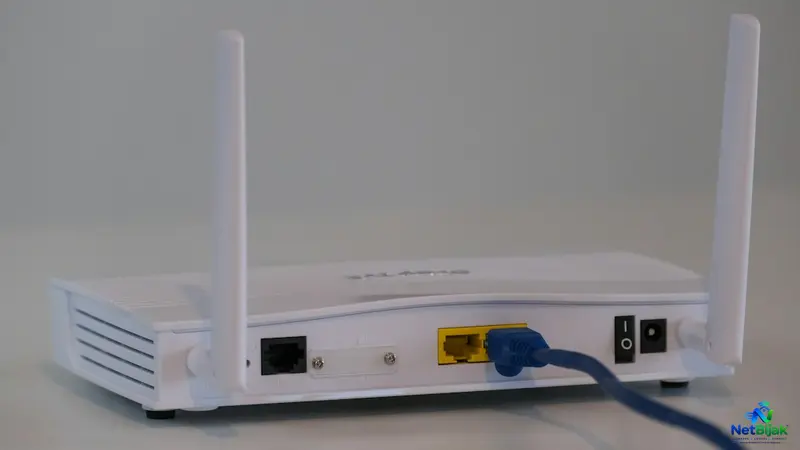
Start with a LAN cable connected directly from your laptop or PC to the router.
Then:
LAN test → Repeat the test → Compare with your plan → Test WiFi separately
This separates a Fibre-line problem from a normal home WiFi problem.
CelcomDigi recommends using a LAN connection when checking whether the actual broadband speed matches the subscribed plan, while Unifi also recommends a wired setup for speed testing. CelcomDigi Fibre Installation FAQ · Unifi Speed Test FAQ
1. Plug In a LAN Cable Before Blaming Your ISP
For a proper Fibre test, connect your computer directly to the router using Ethernet.
Unifi recommends a suitable Ethernet cable and a computer with Gigabit Ethernet when testing higher-speed broadband, and advises users to disconnect other devices and close applications that are using bandwidth during the test. Unifi Speed Test FAQ
For modern broadband plans, Cat5e or Cat6 is a sensible choice.
Don't forget the device itself.
A laptop connected through an old USB adapter or a Fast Ethernet port may never reach 300Mbps, 500Mbps or 1Gbps even when the Fibre line is perfectly fine.
2. Check for the “100Mbps Cap” Trap
This is one of the easiest speed-test results to recognise.
If you subscribe to 300Mbps, 500Mbps or 1Gbps, but repeated wired tests keep landing suspiciously around 90–95Mbps, check your hardware before opening an ISP complaint.
The usual suspects are:
Old or unsuitable Ethernet cable
Replace a questionable cable with a known-good Cat5e or Cat6 cable.
100Mbps LAN port or adapter
Check whether your laptop, USB-to-Ethernet adapter, docking station or router port is negotiating at 100Mbps instead of 1Gbps.
A wired link negotiated at 100Mbps can become an obvious bottleneck for any Fibre plan above 100Mbps.
So before telling your ISP “my 500Mbps Fibre only gives me 90Mbps”, check the Ethernet link speed first.
3. The MCMC 90% Rule You Should Know
This is the number worth remembering when you are testing Fibre in Malaysia.
MCMC's Mandatory Standards for Wired Broadband Access Service specify that fibre download and upload throughput should reach at least 90% of the subscribed speed for at least 90% of the time under the relevant QoS standard. MCMC has used this benchmark in its wired broadband service performance monitoring.
So, as a simple reference:
500Mbps plan → 450Mbps
300Mbps plan → 270Mbps
100Mbps plan → 90Mbps
But don't misunderstand the rule.
It does not mean every single speed test must show exactly 90% or above. The MCMC standard is a service-quality measurement over time, not a promise that your laptop will display the same number on every test.
That is why one bad speed test is not enough to prove your ISP is breaching the standard.
But if your properly configured wired connection repeatedly stays far below the benchmark, that is when you have a much stronger reason to raise a technical complaint.
4. Test More Than Once
Don't run one test, take a screenshot and immediately conclude that your Fibre is slow.
Run several tests.
Ideally, test at different times of the day and keep the results. Close cloud backups, streaming apps, game downloads, VPNs and other heavy traffic before testing.
Unifi specifically recommends reducing other traffic and connected devices during the test, while CelcomDigi also advises checking the connection via LAN when verifying subscribed speed. Unifi Speed Test FAQ · CelcomDigi Fibre Speed Guide
Three consistent results are much more useful than one random result.
5. Test WiFi Separately
Once your wired test is done, then test your phone or laptop over WiFi.
This tells you whether your problem is actually the Fibre line or your home network.
Maxis notes that WiFi speed can vary depending on factors such as distance from the router and walls, while CelcomDigi highlights WiFi frequency, connected devices and router placement as factors that can affect the observed speed. Maxis Home WiFi Speed Test · CelcomDigi Fibre Speed Guide
For example:
500Mbps Fibre + LAN = 480Mbps
500Mbps Fibre + WiFi = 120Mbps
That does not automatically mean your ISP is giving you only 120Mbps.
Your Fibre may already be working properly; the bottleneck could be WiFi coverage, router capability or the device itself.
6. Show Proof, Not Excuses
This is how you should approach a slow-speed complaint.
Don't simply tell customer service:
“Internet saya slow.”
Give them evidence.
Run three dated wired speed tests, save the screenshots and record:
- Date and time
- Download speed
- Upload speed
- Test method: LAN
- Device used
- Ethernet adapter or port used
Use a recognised speed-test service such as Ookla, and where available, your ISP's own testing tools. CelcomDigi recommends Speedtest by Ookla for checking broadband performance, while Unifi provides its own speed-testing guidance. CelcomDigi Internet Speed Guide · Unifi Speed Test FAQ
When opening the ticket, say something specific:
“I performed three wired LAN speed tests and the results are consistently below the MCMC 90% benchmark for my subscribed Fibre speed. Please check the line and escalate this as a technical issue.”
That is much stronger than simply saying your WiFi feels slow.
It also makes it easier for the support team to determine whether the case requires line diagnostics or a technician visit.
When Should You Contact Your ISP?
Contact your ISP when:
Your wired speed is consistently low
and
You have already ruled out your cable, Ethernet port, adapter, device and background traffic.
At that point, keep your screenshots and ticket numbers.
The more consistent your evidence is, the easier it is for the ISP to investigate the problem properly.
Unifi provides EasyFix for connection troubleshooting, while Maxis and CelcomDigi also provide tools and support channels for diagnosing Fibre and home-network issues. Unifi Support · Maxis Home Fibre Support · CelcomDigi Fibre Support
NetBijak’s Take
Before upgrading from 300Mbps to 500Mbps or 1Gbps, prove that your current Fibre is actually the bottleneck.
A proper LAN test can tell you far more than a WiFi test on your phone.
And remember the MCMC benchmark: for Fibre, the relevant standard is 90% of subscribed speed for at least 90% of the time. It is a useful reference when a properly tested wired connection consistently underperforms.
Frequently Asked Questions
Not necessarily. WiFi speed depends on your router, device, signal strength, distance and other factors. Test the connection through LAN first before judging the Fibre line.
No. The relevant wired Fibre QoS benchmark is at least 90% of subscribed speed for at least 90% of the time. One isolated low result does not by itself prove a regulatory breach.
Check the Ethernet cable, the router LAN port, your laptop's Ethernet capability and any USB-to-Ethernet adapter or docking station. A Fast Ethernet link can cap the connection around 100Mbps.
Three consistent, dated wired speed-test screenshots are a practical starting point. Include the test time and make it clear that the tests were performed through LAN with other heavy bandwidth usage stopped.
Don't just write “Internet slow.” Say: “I have performed three wired LAN speed tests and the results are consistently below 90% of my subscribed Fibre speed. Please check the line and escalate this as a technical fault.” That gives the support agent something measurable to investigate instead of another generic “slow internet” complaint.
Related Articles
 Article
If you regularly download large files through BitTorrent, your broadband speed is only part of the e...
 Article
Broadband Speed Test Result: What Are the Numbers Telling You?A broadband speed test gives you sever...
 Article
100Mbps vs 300Mbps: Which Broadband Speed Do You Need?The choice between 100Mbps and 300Mbps is main...
 Article
Across many countries, telecommunications operators are gradually moving away from traditional coppe...
 Article
Your broadband works normally for an hour, then suddenly disconnects for a few seconds or minutes be...
 Article
Including fibre broadband in the rent can make a rental property easier to market. The problem start...